
Google Keep - Notes and lists
Google LLCProductivity
4.760.57K Reviews
- Version
- Varies With Device
- Installs
- 1.00B
- Age Rating
- Everyone
Screenshots
Our Review of Google Keep - Notes and lists
 Analysis by Appyee
I tend to trust a notes app only when it helps me capture something quickly and still makes it easy to find later. That is the practical appeal of Google Keep: it turns scattered thoughts, short lists, and reminders into small pieces of information I can return to without building a complicated system around them. It is a free productivity app from Google LLC, and its long-running popularity is reflected in a 4.7 average from around 2.4 million ratings and over a billion installs. For me, the key question is not whether it can replace every planning tool, but whether its lightweight approach fits the way you actually remember things.
Unpacking the Simplicity and Functionality
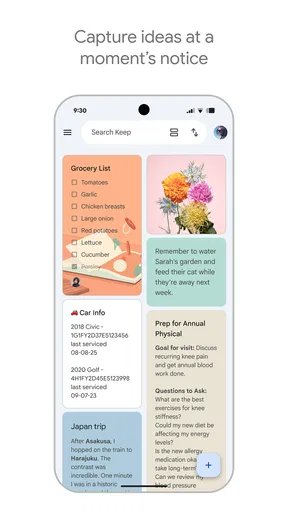
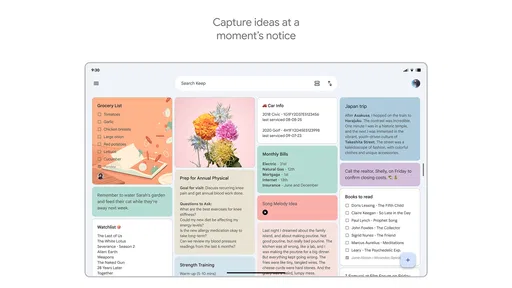
Google Keep is all about simplicity. The moment you open the app, you’re greeted with a straightforward interface that doesn’t mess around. It’s like walking into a room where everything is neatly labeled, and you know exactly where to find what you need. Just tap the plus sign, and boom – you’re ready to jot down your thoughts.
That low-friction start is more useful than it sounds. When I’m walking out the door and suddenly remember an errand, I don’t want to choose a project, fill in fields, or decide where a task belongs before saving it. I can make a quick note first and sort it out later. This makes Keep a good landing place for information that would otherwise end up in a text to myself, on a scrap of paper, or forgotten entirely.
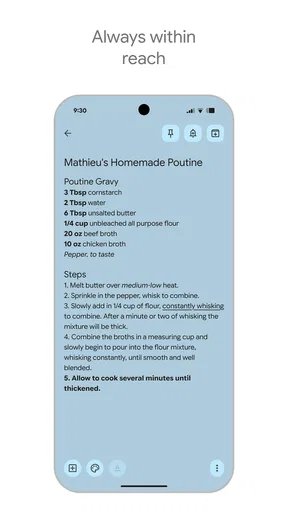
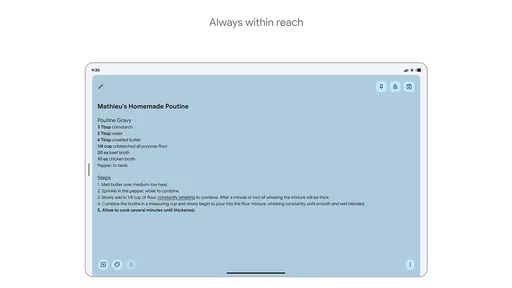
What’s really cool is the variety of note formats you can choose from. Whether you’re scribbling down a quick reminder, creating a checklist, or even recording a voice memo, Google Keep has got you covered. Oh, and did I mention you can add images too? Just snap a pic, and it’s there with your notes. It’s like having a digital scrapbook right in your pocket.
The formats are most helpful when they match the thing you are trying to remember. A checklist works well for groceries because you can mark items as you go; a plain note is better for a phone number or an idea that may need context; a picture can preserve a label or a handwritten detail you do not want to retype. I would not treat every note as a task, though. A loose idea does not need boxes to tick, and a long plan can become awkward if it stays in a compact note instead of moving into a fuller document.
Organizing Made Easy
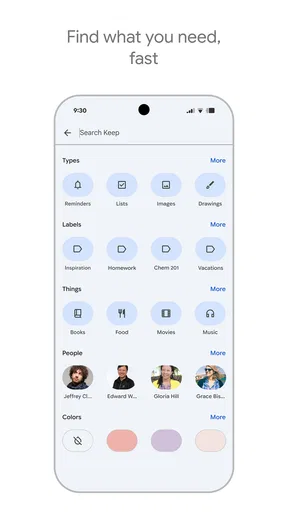
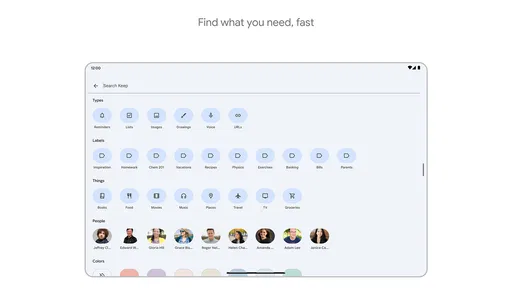
Now, let’s talk organization. We all know that chaos can creep in if things aren’t in order. Thankfully, Google Keep lets you keep everything tidy with labels and colors. It’s a breeze to categorize your notes and find them later. Plus, if you’re like me and love a little color-coding, you can assign different colors to different notes. Trust me, it’s a total game-changer.
I get the most from labels when I keep them broad and predictable. A few categories such as “home,” “work,” and “ideas” are easier to maintain than a label for every small subject. Colors can then act as a quick visual cue, rather than a second, more complicated filing system. One practical habit is to add a label as soon as a temporary note turns into something worth keeping; otherwise, the uncluttered board can gradually become a pile of old reminders and half-formed thoughts.
And here’s the kicker – you can set reminders. Yep, no more forgetting birthdays or important meetings. Just set a time or location-based reminder, and Google Keep will gently nudge you when it’s time to act. It’s like having a personal assistant, minus the hefty paycheck.
I find reminders most dependable when I attach them to a clear next action: pick up a parcel, call someone back, or bring a particular item along. For an event that needs a calendar slot, other people’s attendance, or a detailed schedule, I would use a calendar instead. A note reminder is a nudge tied to information; it is not a substitute for managing a busy timetable. Location reminders can also be less useful if you prefer not to rely on arriving at a place as the cue, so a time-based prompt may suit your routine better.
Seamless Integration with Google Ecosystem
If you’re already in the Google ecosystem, integrating Google Keep into your life is as smooth as butter. It syncs effortlessly with Google Drive, meaning your notes are accessible from any device. Left your phone at home? No worries. Just log in from a computer, and everything’s right there waiting for you.
For someone who switches between a phone and a computer, that continuity changes the role of the app: I can capture a thought on the move and revisit it when I sit down to work. I would still keep a note short if I expect to turn it into a document. Converting a note into Google Docs is a sensible handoff for an assignment outline, meeting notes that need editing, or a draft that has outgrown its quick-capture form. Keep is the starting point, while Docs is the better place for sustained writing and presentation.
Plus, you can easily convert notes into Google Docs if you need something more robust for work or school. It’s all about making your digital life seamless and efficient. And honestly, who doesn’t want that?
One useful boundary is to think of Keep as a shared shelf for snippets, not as a complete archive for every important file. A note can point you toward what you need or preserve a short reference, but a substantial document is easier to revise and structure in a document editor. If your work depends on carefully nested folders, long research notes, or formal project tracking, choosing a more specialized tool from the outset can save you from having to reorganize later.
Collaboration and Sharing
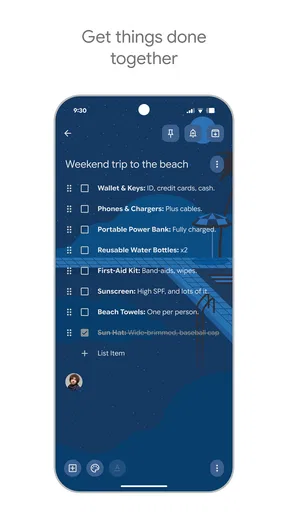
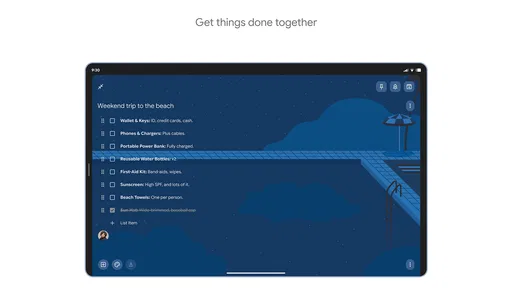
Now, here’s a feature that I absolutely love – sharing and collaborating. Whether you’re planning a trip with friends or working on a group project, you can share your notes and lists with others. Everyone can contribute and make changes in real-time. It’s perfect for keeping everyone on the same page, literally.
A shared list is especially practical when several people are handling small parts of the same errand. For a trip, one person can add a charger while another adds snacks, and the list stays more useful than a chain of messages that gets buried. I would use this for lightweight coordination, not for a complicated project with dependencies, assigned deadlines, and a record of decisions. When many people edit one note, a short title and clear wording matter; otherwise, a shared page can become just as confusing as an unorganized chat.
And let’s not forget the ability to pin important notes to the top. This way, your most crucial tasks are always front and center, so you can’t miss them even if you try.
Pinning works best as a temporary spotlight rather than a permanent status for everything important. If I pin too many notes, the top of the screen stops telling me what deserves attention. I would keep only the current grocery list, a note I need during the day, or a short-term plan there, then unpin it when it is no longer active. That small cleanup habit helps Keep remain quick to scan instead of turning every old priority into visual noise.
Where This Lightweight Approach Fits
Here is a realistic day where I can see the app earning its place. Before leaving home, I start a shopping checklist. During the commute, I remember a question for a colleague and save it as a separate note rather than trusting myself to recall it later. At lunch, I check the list, mark what I have already picked up, and add one missing item. When I am back at my desk, I turn the work question into a proper message or document. Each step is small, but the benefit is that the information reaches the right place before it disappears from my head.
This is also why I would not force every part of a routine into one note. A running list is useful for repeat errands, while a one-off reminder is easier to understand when it has a specific action and time. Separating them prevents a checklist from becoming a mixture of groceries, appointments, and unrelated ideas. The app works best when notes stay focused enough that I can recognize their purpose at a glance.
Compared with a full task manager, Keep feels more immediate and less demanding: I can jot something down without assigning a due date or building a workflow. The trade-off is that a collection of notes does not provide the same structure as a dedicated project tool. Compared with a traditional document app, it is faster for fragments but less comfortable for extended writing. And compared with paper, it is easier to search and share across devices, although paper can be more satisfying when I want to sketch freely or avoid looking at a screen.
If you are deciding whether it suits you, ask what usually happens to your small bits of information. If they vanish into messages, screenshots, or scraps of paper, Keep can give them a simple home. If you already rely on a carefully organized task manager and need dependencies, progress tracking, and detailed planning, adding another inbox may create more work than it saves. The same goes for people who need a formal research archive: a lightweight note board is not the place I would build a large, interlinked knowledge library.
Final Thoughts
In a world where being organized can sometimes feel like an uphill battle, Google Keep is like your trusty sidekick. It’s easy to use, integrates beautifully with other Google services, and helps you keep your life in order with minimal fuss.
My honest recommendation is to try it for one concrete routine rather than moving your whole life into it on day one. Use it for a grocery list, a recurring household reminder, or quick work notes, then notice whether you actually return to what you saved. If you do, settle on a few labels and a simple pinning habit. If you keep forgetting to check it, a calendar alert or a tool you already open every day may be a better home for time-sensitive tasks.
Google Keep is free, rated for Everyone, and has been available since March 20, 2013. Its 4.7 average across around 59,000 written reviews and its reach of over a billion installs show that it has become a familiar option, but popularity is not the reason I would choose it. I would choose it because it makes capturing a thought feel easy and does not demand a complicated setup. If that is what you need, it is well worth trying; if your notes need deep structure or your tasks need strict project controls, I would look for a more specialized alternative.
Privacy and Permissions
See what permissions an app requests and how it handles your data.
- Identity
- find accounts on the device
- Contacts
- find accounts on the device, read your contacts
- Location
- precise location (GPS and network-based)
- Photos/Media/Files
- read the contents of your USB storage, modify or delete the contents of your USB storage
- Storage
- read the contents of your USB storage, modify or delete the contents of your USB storage
- Microphone
- record audio
- Other
- view network connections, measure app storage space, full network access, read sync settings, run at startup, use accounts on the device, control vibration, prevent device from sleeping, toggle sync on and off, read Google service configuration
How Google Keep - Notes and lists Compares
Full ComparisonChoose Google Keep for quick shared notes, OneNote for structured notebooks and collaboration, or Samsung Notes for handwriting and rich formatting on Samsung devices.
| App | Developer | Rating | Price |
|---|---|---|---|
 Google Keep - Notes and listsThis App | Google LLC | 4.7 | Free |
 Microsoft OneNote: Save Notes | Microsoft Corporation | 4.6 | Free |
 Samsung Notes | Samsung Electronics Co., Ltd. | 4.8 | Free |
Verdict
Strengths of Google Keep - Notes and lists
- Seamlessly syncs across devices.
- Simple and intuitive interface.
- Supports voice memos and reminders.
- Collaborative note sharing feature.
- Integrates well with Google ecosystem.
Limitations of Google Keep - Notes and lists
- Limited formatting options.
- No advanced organization tools.
- Lacks rich text editing.
- No offline access for new notes.
- Basic search functionality.
Other Releases by Google LLC
View All
Google Calendar
Productivity4.6

Google Messages
Communication4.6

Tools4.0

Google TV
Video Players & Editors3.9
Similar Picks in This Category
View AllGoogle Calendar
Google LLC4.6

Google Drive
Google LLC4.3

Google Assistant
Google LLC3.9

Microsoft OneDrive
Microsoft Corporation4.6

Samsung Calendar
Samsung Electronics Co., Ltd.4.1

Microsoft OneNote: Save Notes
Microsoft Corporation4.6
You May Also Like
View All
Frequently Asked Questions
What is Google Keep and how does it work?
Google Keep is a note-taking app that allows users to quickly jot down thoughts, create lists, and set reminders. It syncs across all devices via your Google account, making it easy to access your notes anywhere. With a simple interface, users can add images, audio, and even collaborate with others in real-time.
Is Google Keep available on both Android and iOS?
Yes, Google Keep is available for both Android and iOS devices. It can be downloaded from the Google Play Store for Android devices and the App Store for iOS. Additionally, it can be accessed via a web browser on any device, ensuring seamless integration across platforms.
Can I collaborate with others using Google Keep?
Absolutely. Google Keep allows you to share your notes and lists with other Google users. This feature is particularly useful for collaborative work or shared projects, as it enables multiple users to edit and update notes in real-time, ensuring everyone stays on the same page.
Does Google Keep offer reminders and organizational features?
Yes, Google Keep offers a variety of organizational features, including labels and color-coding for notes. You can set time-based or location-based reminders to ensure important tasks are not forgotten. These features help users manage their notes efficiently, making Google Keep a versatile tool for organization.
Is data from Google Keep secure and private?
Google Keep uses encryption to protect your data both in transit and at rest. As with all Google services, it adheres to strict privacy policies to ensure user data is secure. Users can also enable two-factor authentication on their Google account for an added layer of security.
